


 How to import cameras into BVMS from a CSV file
Pro Services Tech Tips by MidChes | Episode #0002 with David Brent
Most security projects already have a camera schedule. Someone has worked out which address belongs to each camera, what to call it, and where it goes. When it is time to commission the Bosch Video Management System (BVMS), that list can do more than document the installation.
In this episode, David Brent uses a CSV file to bring four devices into a recording pool. With the same import, he puts three camera views in a folder and leaves the fourth at the top of the operator’s camera list. Here is how to use your own camera schedule to get that result.
Start with the BVMS camera import template
On the BVMS workstation, make a working copy of MassConfigurationTemplate.csv from the Samples folder. David shows it in the following location:
C:\Program Files\Bosch\VMS\Samples\MassConfigurationTemplate.csv
Keep all seven column headers. Each device needs values in the first three columns. The remaining four let you supply credentials, organize camera views, and assign access.
|
CSV column |
What goes in the row |
|
NetworkAddress |
Required. Enter the device IP address. Each device needs a unique address. |
|
EncoderName |
Required. Give the device the name the technician should see in the Device Tree. |
|
CameraNames |
Required. Enter the camera view name. Separate channel names on a multichannel encoder with a semicolon. |
|
UserName |
The account BVMS uses to authenticate to the device. David’s example uses the service account. |
|
Password |
The password for that device account. Limit access to working files that contain credentials. |
|
LogicalTree |
Enter a folder path such as /test, or enter / to place the view at the root. A blank field leaves the view out of the Logical Tree. |
|
Permissions |
Enter the existing BVMS groups that should have access. Separate multiple group names with a semicolon. A blank entry permits all groups. |
Run the camera import in Configuration Client
For a new installation, add the Video Recording Manager (VRM) first. For an expansion, select the pool that should receive the new devices. David uses Pool 0.
1. Prepare the CSV. Copy the camera schedule into the template, check for duplicate addresses, and confirm that any groups named in Permissions already exist. Save as a comma-delimited CSV and close it in Excel. David calls out that the import file must be closed.
2. Select the destination. In BVMS Configuration Client, open Devices and expand VRM Devices. Right-click the destination pool and select “Import cameras from CSV file.” Choose the prepared file and open it.
3. Read the import report. Review each row for success, failure, or an offline device. If a row fails, use the report details or Export log to identify the cause. Correct the affected rows and retry those entries.
4. Check both trees. Expand the pool to check device names. Then open Maps and Structure and inspect the Logical Tree for the camera names and folder locations. Once you have reviewed the changes, save and activate the configuration through your normal commissioning process.
What the operator sees
In David’s example, Pool 0 contains four devices. In the Logical Tree, C0021, C003, and C001 appear under test. C004 sits one level higher because its CSV row specifies /. If a camera arrives in the pool but is missing from the operator’s list, check its Logical Tree entry and the operator group’s permissions.
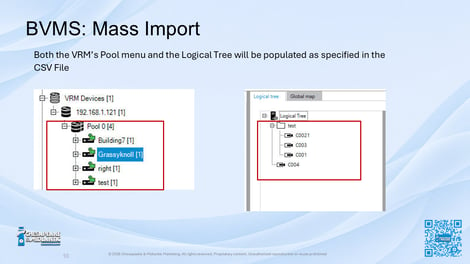
From the video at 2:18. The left pane shows devices in Pool 0. The right pane shows the camera views in the Logical Tree.
Frequently asked questions
How many cameras can I import at once?
IQSIGHT documents up to 250 devices per CSV import in BVMS 12.1. For larger jobs, divide the schedule into files and import them in batches. Check the limit for the version installed at your site.
Can I add cameras to an existing BVMS system?
Yes. Run the import from the existing VRM pool that should receive the new devices. An address already assigned to a device in the system cannot be used to overwrite that device through this import.
What is the difference between a slash and a blank Logical Tree field?
A single slash (/) places a camera at the root. A named path, such as /test, places it in that folder and creates the folder if needed. An empty field omits the camera from the Logical Tree.
Can I limit a camera to administrators during import?
Yes. Specify a Logical Tree location and enter Admin Group in Permissions. For operator access, include the appropriate existing group names. Review the result with the relevant operator account.
Why is the import command missing?
Check which item you right-clicked. The documented command is on a VRM pool in the Device Tree. Live Only and Local Storage branches use different workflows.
Need a hand with your BVMS project?
If you are planning a camera expansion or sorting out how cameras should appear to operators, the MidChes Professional Services team can help you work through the design. From design to scheduled maintenance, we're here to help your project run smoothly.
Contact support@midches.com
Technical references and related viewing
-
Keenfinity Knowledge Base | Importing a camera list from CSV in BVMS 12.1
-
BVMS 12.3 Configuration Manual | Section 15.6, Importing cameras from a CSV file
-
Previous Tech Tip | How Bosch and IQSIGHT cameras share events with MQTT